
.webp)






Info
Overview
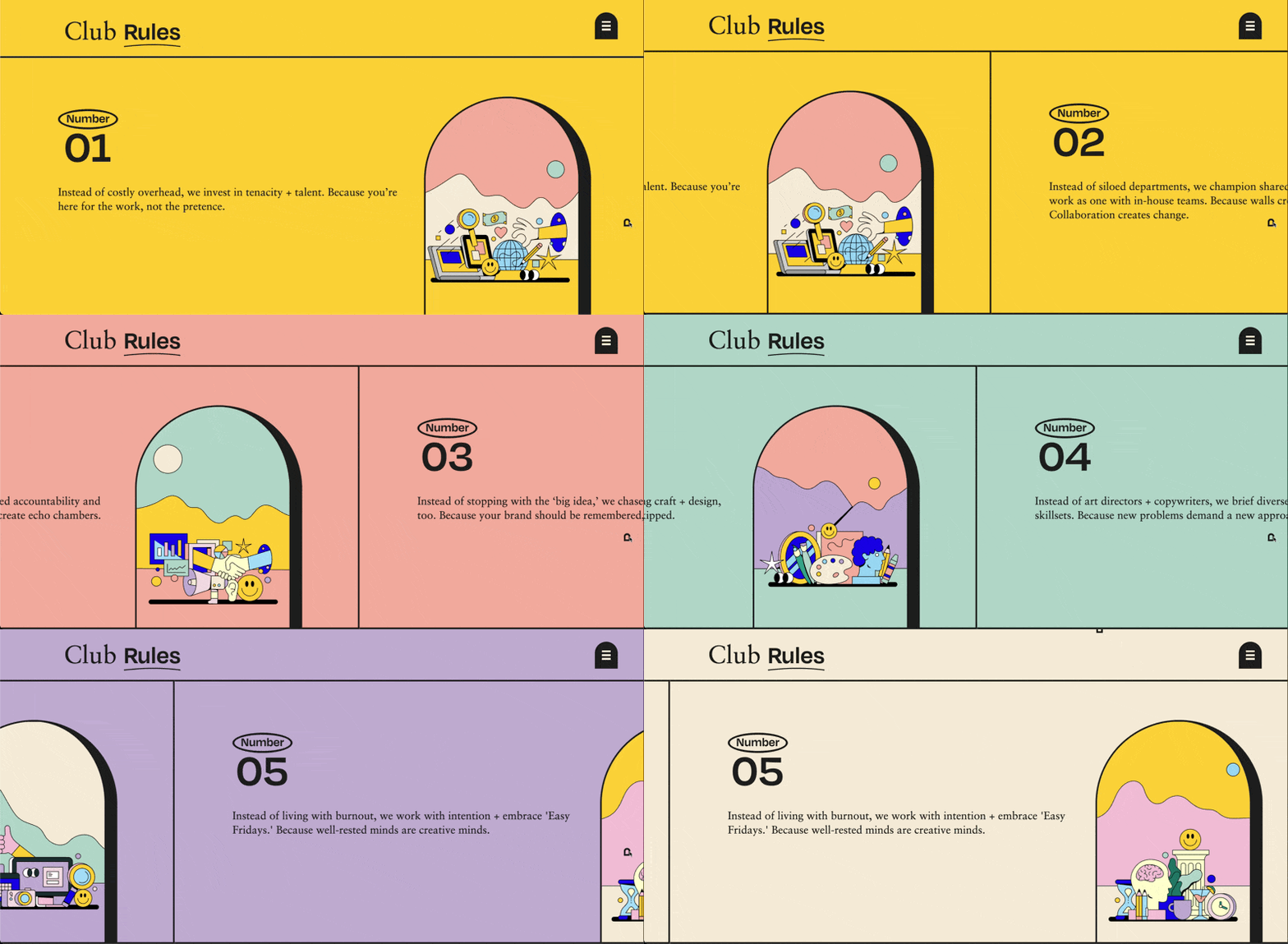
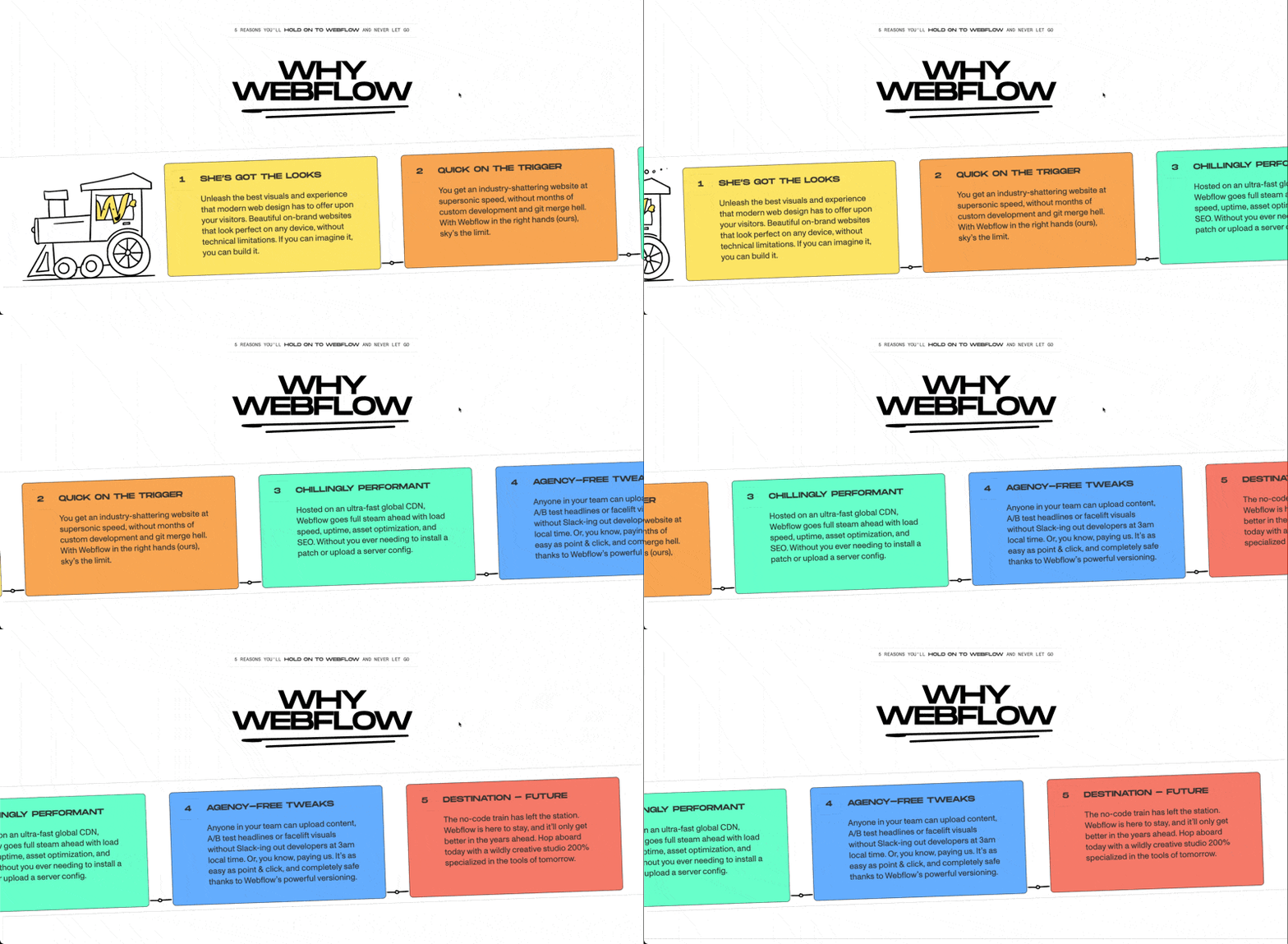
This setup uses GSAP to create a smooth horizontal-scroll moment while the user scrolls normally down the page. The sections move sideways in sync with the scroll, giving the feel of true horizontal motion without altering how the page actually behaves.
It’s perfect for showcasing featured content, product highlights, or storytelling in a visually striking way, and can be disabled on mobile or tablet when needed.
Setup
Copy & paste the scripts before the </body> tag of your project. If you added them before for another setup, skip this step.
<!-- GSAP Core -->
<script src="https://cdn.jsdelivr.net/npm/gsap@3.14.1/dist/gsap.min.js"></script>

<!-- GSAP ScrollTrigger Plugin -->
<script src="https://cdn.jsdelivr.net/npm/gsap@3.14.1/dist/ScrollTrigger.min.js"></script>Right-click in Elementor, choose “Paste from another site,” and while the popup is open, press cmd/ctrl + v to insert the layout.
Place the code in an HTML widget or add it through Elementor → Custom Code (before the closing </body> tag) either globally or only on selected pages.
Paste the code through the page or site settings, or add it via Elementor → Custom Code (before </body>) for broader use.
[ou-horizontal-scroll-wrap],
[ou-horizontal-scroll-panel] {
  transition: none !important;
  overscroll-behavior: none;
}

[ou-horizontal-scroll-wrap] {
  overflow: hidden;
}Paste the script through Elementor → Custom Code (set to load after </body>) for site-wide or page-specific loading.
function OUHorizontalScroll() {
  if (document.body.classList.contains("elementor-editor-active")) return;

  const ATTR = {
    wrap: "ou-horizontal-scroll-wrap",
    panel: "ou-horizontal-scroll-panel",
    track: "ou-horizontal-scroll-track",
    disable: "ou-horizontal-scroll-disable"
  };

  const mm = gsap.matchMedia();

  mm.add(
    {
      isMobile: "(max-width: 767px)",
      isTablet: "(max-width: 1024px)",
      isDesktop: "(min-width: 1025px)"
    },
    (context) => {
      const { isMobile, isTablet } = context.conditions;

      const ctx = gsap.context(() => {
        const wrappers = document.querySelectorAll(`[${ATTR.wrap}]`);
        if (!wrappers.length) return;

        wrappers.forEach((wrap) => {
          const disable = wrap.getAttribute(ATTR.disable);

          if (
            (disable === "mobile" && isMobile) ||
            (disable === "tablet" && isTablet)
          ) {
            return;
          }

          const track = wrap.querySelector(`[${ATTR.track}]`);
          const panels = gsap.utils.toArray(
            `[${ATTR.panel}]`,
            wrap
          );

          if (!track && panels.length < 2) return;

          const viewportWidth = document.documentElement.clientWidth;
          const scrollWidth = track ? track.scrollWidth : wrap.scrollWidth;
          const scrollDistance = scrollWidth - viewportWidth;

          if (scrollDistance <= 0) return;

          gsap.to(track || panels, {
            x: -scrollDistance,
            ease: "none",
            scrollTrigger: {
              trigger: wrap,
              start: "top top",
              end: "+=" + scrollDistance,
              scrub: true,
              pin: true,
              invalidateOnRefresh: true
            }
          });
        });
      });

      return () => ctx.revert();
    }
  );
}

document.addEventListener("DOMContentLoaded", () => {
  OUHorizontalScroll();
});Place the PHP snippet inside your theme’s functions.php or using any code snippet to enable logic.
Add the Wrapper
Add the attribute ou-horizontal-scroll-wrap to the outer container that should become the horizontal scrolling section. This element is pinned during scroll and controls the entire horizontal interaction.
The wrapper should:
- Span the full viewport width. Set its width to
100vwso the scroll distance is calculated correctly relative to the viewport. - Use a horizontal layout. Set it to
display: flexand disable wrapping. Panels must stay in a single row; wrapping will break the scroll math. - Contain only the panels (or minimal structure) as direct children. Nested extra wrappers around panels can cause incorrect width calculations.
- Avoid extra padding or margins that change its width, unless you intentionally account for them in your layout.
Add the Panels
Add ou-horizontal-scroll-panel to each horizontal item inside the wrapper. These elements move sideways as the user scrolls.
Each panel should:
- Have a real, non-shrinking width. Use a fixed
width, amin-width, or content that naturally exceeds the viewport. Avoidflex: 1that lets panels shrink; preferflex: 0 0 auto. - Stay on a single horizontal row. Panels must not wrap onto a second line. If the total width of all panels does not exceed the viewport width, the horizontal scroll will not activate.
- Use any height that fits your layout. You can use
100vhfor a full-screen horizontal section, or let the content define the height.
Implementation
How the Scroll Distance Is Calculated
The script measures the combined width of all panels and subtracts the viewport width:
- If the total width is larger than the viewport → horizontal scroll is enabled.
- If the total width is smaller or equal → no horizontal scroll (distance becomes
0).
This keeps the effect automatic and based on real content.
Device Control
Add ou-horizontal-scroll-disable to the wrapper to skip the horizontal scroll on specific devices.
- Use the value
mobileto disable on screens up to767px - Use the value
tabletto disable on screens up to1024px
If the attribute is not present, the horizontal scroll runs on all devices.
Add the Track (Optional)
Add the attribute ou-horizontal-scroll-track to a single inner container inside ou-horizontal-scroll-wrap.
When present, this element is translated horizontally instead of moving each panel individually.
The wrapper remains pinned and controls the scroll duration, but all horizontal movement happens on the track.
The track should:
- Be a direct child of
ou-horizontal-scroll-wrap - Contain all elements marked with
ou-horizontal-scroll-panel - Use a horizontal layout (flex)
- Prevent wrapping so content stays on a single row
When to Use the Track
Use ou-horizontal-scroll-track when:
- You want a vertical section with horizontal cards inside it
- You need headings or content that stay fixed above the moving cards
- Panels are complex/nested and you prefer one clean transform on a parent
- You want more stable, predictable motion across different layouts and breakpoints
If none of this is needed, you can skip the track and let the script move panels directly.
Some example layouts you can build using ou-horizontal-scroll-track.