


Details
Overview
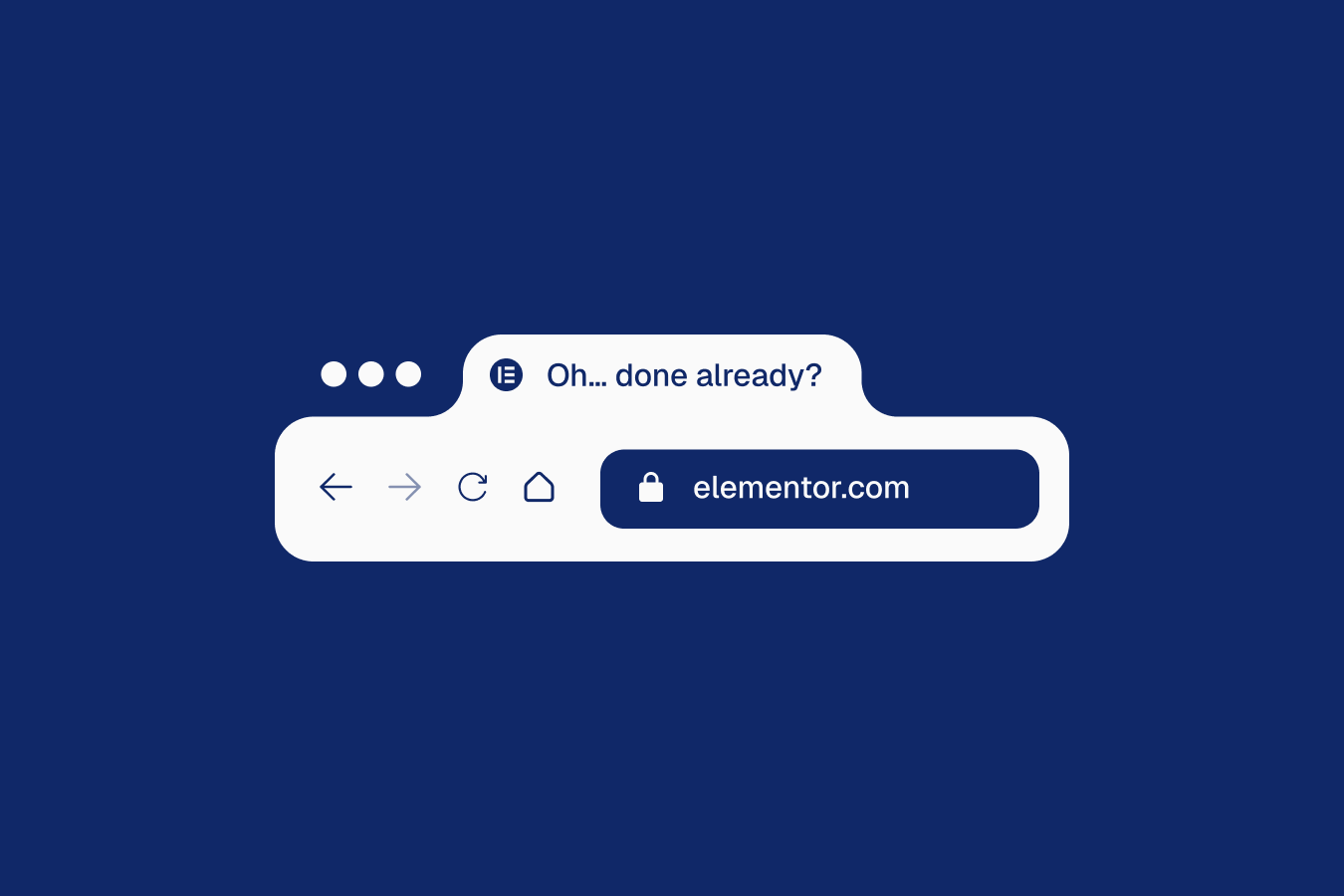
This snippet changes the browser tab title based on tab visibility. When the user switches away, the title updates to a custom message. When the user returns, the original title restores.
Use this to grab attention, signal inactivity, or add subtle engagement feedback when users leave and return to your site.
Setup
Add External Scripts
Copy & paste the scripts before the </body> tag of your project. If you added them before for another setup, skip this step.
Add HTML
Place the code in an HTML widget or add it through Elementor → Custom Code (before the closing </body> tag) either globally or only on selected pages.
Add Custom CSS
Paste the code through the page or site settings, or add it via Elementor → Custom Code (before </body>) for broader use.
Add Custom Javascript
Paste the script through Elementor → Custom Code (set to load after </body>) for site-wide or page-specific loading.
(function () {
  const originaltitle = document.title;
  const awaymessage = "👀 Oh… so we’re done?"; // title to show when tab is inactive

  function handlevisibility() {
    document.title = document.hidden ? awaymessage : originaltitle;
  }

  document.addEventListener("visibilitychange", handlevisibility);
})();Add Custom PHP
Place the PHP snippet in your theme’s functions.php file or add it using a code snippets plugin to enable the logic.
Publish and preview live
Some solutions only work on the live site. Always publish and test after each change, as results may not appear in the editor.
Implementation
Customizing Message
Edit the awaymessage string to define the title shown when the user switches away.
const awaymessage = "👀 Oh… so we’re done?"; // title to show when tab is inactiveKeep the text short for clear visibility among multiple tabs. You can also include emojis to add personality and draw attention.
Limit Scope
To limit the message to a specific page, paste the code into an HTML widget and adjust the message only for that page.
For broader control, use Elementor’s Custom Code feature or a code snippet plugin. This lets you enable or disable the snippet on selected pages or post types.