

Info
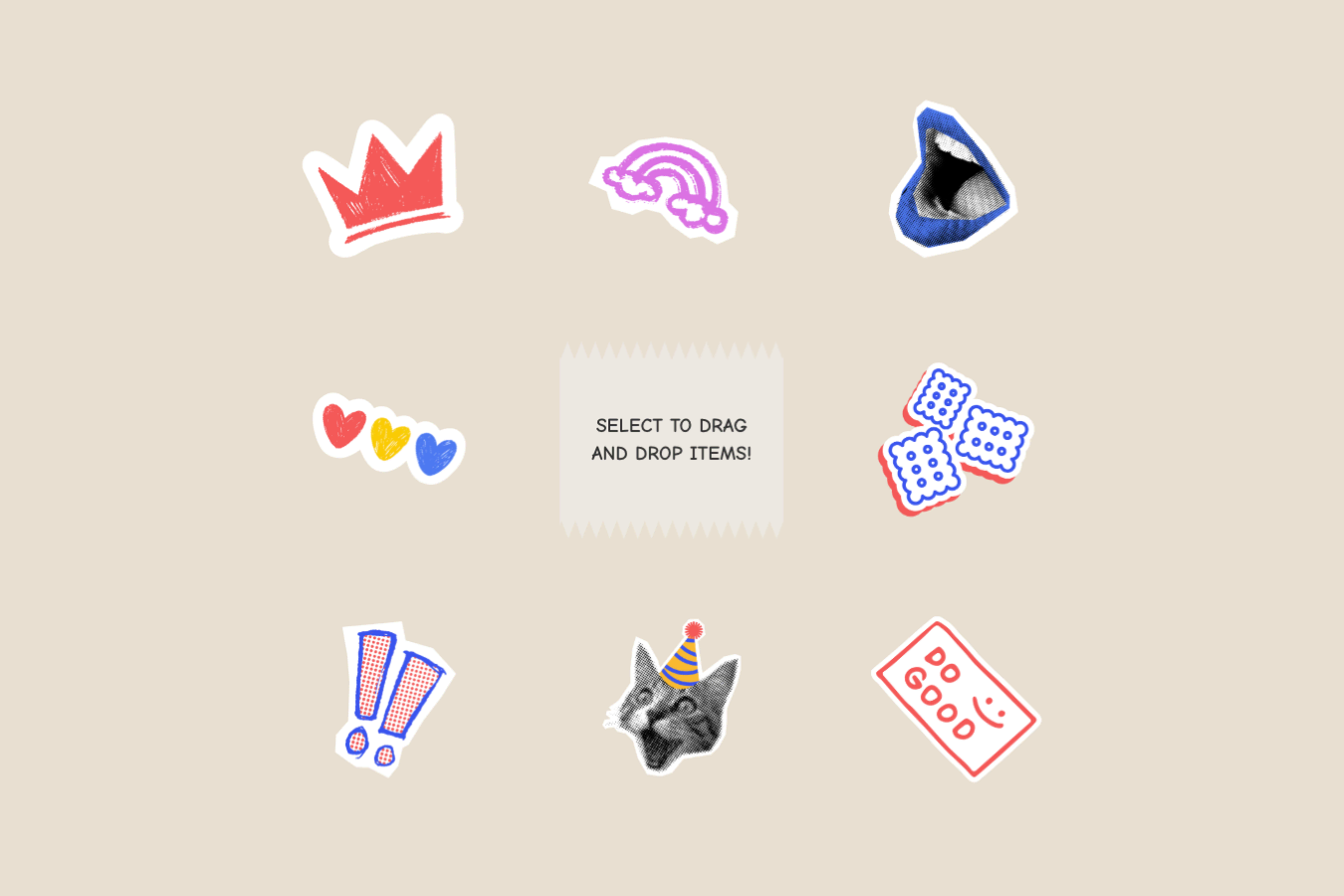
A smooth draggable interaction that lets users grab and move elements around the page, with optional bounds, inertia, scaling, rotation, and return-to-start behavior.
Great for playful cards, stickers, floating objects, interactive hero elements, or anything that should feel more hands-on and dynamic.
Required
Setup
Copy structure to Elementor
Right-click in Elementor, choose “Paste from another site,” and while the popup is open, press cmd/ctrl + v to insert the layout.
Add External Scripts
Place the scripts before the body tag of your project. If you have added them before for another setup, skip this step.
<!-- GSAP Core -->
<script src="https://cdn.jsdelivr.net/npm/gsap@3.15/dist/gsap.min.js"></script>

<!-- GSAP Draggable Plugin -->
<script src="https://cdn.jsdelivr.net/npm/gsap@3.15/dist/Draggable.min.js"></script>

<!-- GSAP InertiaPlugin -->
<script src="https://cdn.jsdelivr.net/npm/gsap@3.15/dist/InertiaPlugin.min.js"></script>Add Custom CSS
Paste the code through the page or site settings, or add it via Elementor → Custom Code before body tag.
[data-drag-element="item"] {
  transition: none !important;
}Add Custom Javascript
Paste the script through Elementor → Custom Code and set it to load after the closing body tag.
document.addEventListener("DOMContentLoaded", () => {
  if (document.body.classList.contains("elementor-editor-active")) return;
  if (!window.gsap || !window.Draggable) return;

  gsap.registerPlugin(Draggable);
  if (window.InertiaPlugin) gsap.registerPlugin(InertiaPlugin);

  const hasInertia = !!window.InertiaPlugin;

  const defaults = {
    type:           "x,y",
    inertia:        true,
    dragResistance: 0.15,
    edgeResistance: 0.65,
    scale:          1.05,
    rotate:         22,
    shouldReturn:   false,
    returnDuration: 0.6,
    returnEase:     "power3.out",
  };

  const getBool = (value, fallback) =>
    value === "true" ? true : value === "false" ? false : fallback;

  const getNum = (value, fallback) => {
    const n = parseFloat(value);
    return Number.isFinite(n) ? n : fallback;
  };

  const parseConfig = (item) => ({
    type:           item.dataset.dragElementType           || defaults.type,
    dragResistance: getNum(item.dataset.dragElementResistance,     defaults.dragResistance),
    edgeResistance: getNum(item.dataset.dragElementEdgeResistance, defaults.edgeResistance),
    scale:          getNum(item.dataset.dragElementScale,          defaults.scale),
    rotate:         getNum(item.dataset.dragElementRotate,         defaults.rotate),
    shouldReturn:   getBool(item.dataset.dragElementReturn,        defaults.shouldReturn),
    returnDuration: getNum(item.dataset.dragElementReturnDuration, defaults.returnDuration),
    returnEase:     item.dataset.dragElementReturnEase             || defaults.returnEase,
    inertia:        getBool(item.dataset.dragElementInertia,       defaults.inertia),
  });

  let zCounter = 100;

  document.querySelectorAll('[data-drag-element="item"]').forEach((item) => {
    Draggable.get(item)?.kill();

    const cfg = parseConfig(item);
    const bounds = item.closest('[data-drag-element="bound"]') || undefined;
    const useInertia = !cfg.shouldReturn && hasInertia && cfg.inertia;

    gsap.set(item, {
      rotation:        "+=0",
      scale:           "+=0",
      x:               "+=0",
      y:               "+=0",
      transformOrigin: "50% 50%",
    });

    const initState = {
      x:        gsap.getProperty(item, "x"),
      y:        gsap.getProperty(item, "y"),
      rotation: gsap.getProperty(item, "rotation"),
      scale:    gsap.getProperty(item, "scale"),
    };

    Draggable.create(item, {
      type:           cfg.type,
      inertia:        useInertia,
      dragResistance: cfg.dragResistance,
      edgeResistance: cfg.edgeResistance,
      bounds,

      onPress() {
        gsap.to(item, {
          scale:     initState.scale * cfg.scale,
          rotation:  initState.rotation + gsap.utils.random(-cfg.rotate, cfg.rotate),
          duration:  0.2,
          ease:      "power2.out",
          overwrite: "auto",
        });
      },

      onDragStart() {
        gsap.set(this.target, { zIndex: ++zCounter });
      },

      onRelease() {
        if (cfg.shouldReturn) return;
        gsap.to(item, {
          scale:     initState.scale,
          rotation:  initState.rotation,
          duration:  0.2,
          ease:      "power2.out",
          overwrite: "auto",
        });
      },

      onDragEnd() {
        if (!cfg.shouldReturn) return;
        gsap.to(this.target, {
          x:          initState.x,
          y:          initState.y,
          scale:      initState.scale,
          rotation:   initState.rotation,
          duration:   cfg.returnDuration,
          ease:       cfg.returnEase,
          overwrite:  "auto",
          clearProps: "zIndex",
        });
      },
    });
  });
});Publish and preview live
Some solutions only work on the live site. Always publish and test after each change, as results may not appear in the editor.
Required Attribute
Item
Add data-drag-element="item" to each element you want to make draggable.
This is the only required attribute. If no other attributes are used, the item will use the default draggable settings
Settings
Bound
Add data-drag-element="bound" to the parent wrapper if you want the draggable items to stay inside a specific area. The script automatically uses the closest parent with this attribute as the boundary, so each item can only move within that wrapper.
Drag Direction
Drag type controls which direction the item can move. By default, the value is x,y, which allows the item to move freely on both the horizontal and vertical axis. You can override this by adding data-drag-element-direction="VALUE" to the draggable item. Use x for horizontal dragging only, y for vertical dragging only, or x,y for free dragging.
Return
Return controls whether the item stays where the user drops it or moves back to its original position. By default, the value is false, so the item stays where it is dropped.
You can enable it by adding data-drag-element-return="true" to the draggable item. When enabled, the item returns to its original x/y position.
Return Duration
Return duration controls how long the return animation takes when return is enabled. By default, the value is 0.6 seconds. You can override this by adding data-drag-element-return-duration="VALUE" to the draggable item.
Return Ease
Return ease controls the motion curve used when the item moves back to its original position. By default, the value is power3.out. You can override this by adding data-drag-element-return-ease="VALUE" to the draggable item. This accepts any valid GSAP easing value.
Inertia
Inertia controls whether the item keeps moving slightly after the user releases it, creating a natural throw/momentum effect. By default, the value is true. You can disable it by adding data-drag-element-inertia="false" to the draggable item.
If return is enabled with data-drag-element-return="true", inertia will not run because the item goes back to its original position instead.
Drag Resistance
Drag resistance controls how much the item resists movement while being dragged. By default, the value is 0.15. You can override this by adding data-drag-element-resistance="VALUE" to the draggable item. Higher values make the drag feel heavier, while lower values make it feel lighter.
Edge Resistance
Edge resistance controls how much the item resists movement near the boundary edge. By default, the value is 0.65. You can override this by adding data-drag-element-edge-resistance="VALUE" to the draggable item. This setting is most useful when the item is inside a wrapper using data-drag-element="bound".
Scale
Scale controls how much the item grows when it is pressed or dragged. By default, the value is 1.05. You can override this by adding data-drag-element-scale="VALUE" to the draggable item. Use 1 if you do not want the item to scale.
Rotate
Rotate controls the maximum random tilt applied when the item is pressed. By default, the value is 22, which means the item can randomly rotate anywhere between -22deg and 22deg from its original rotation. You can override this by adding data-drag-element-rotate="VALUE" to the draggable item.
Global Default Values
You can adjust the default drag behavior directly from the script. These values apply to every draggable item unless you override them using data attributes on the item.
To change the global drag settings across all items, edit the values inside the defaults object in the code.
const defaults = {
  direction:      "x,y",
  inertia:        true,
  dragResistance: 0.15,
  edgeResistance: 0.65,
  scale:          1.05,
  rotate:         22,
  shouldReturn:   false,
  returnDuration: 0.6,
  returnEase:     "power3.out",
};