



Type to search… it’s not that hard.
Bummer… nothing matched that.


Info
Guide
Some resources require custom attributes to work properly. This guide shows where to add them in Elementor and how to format them correctly.
Classic Elements
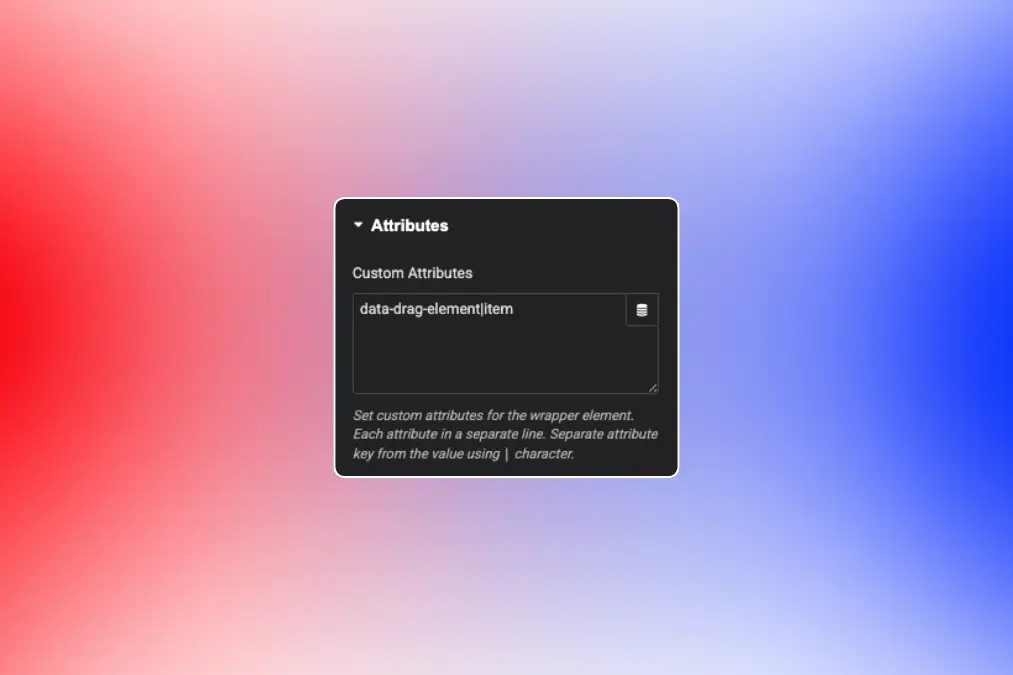
- For classic elements, go to Advanced → Attributes and enter your custom attribute. If no value is needed, add the attribute name only, for example,
data-header. If a value is required, use the formatdata-header|value. - Some attributes can accept multiple values. In those cases, separate the values with spaces, or follow the format specified in the resource documentation. For example:
data-type|primary large. - Place each attribute on its own line in the Attributes panel.
Atomic Elements
Atomic elements make adding attributes much easier, including support for dynamic values.
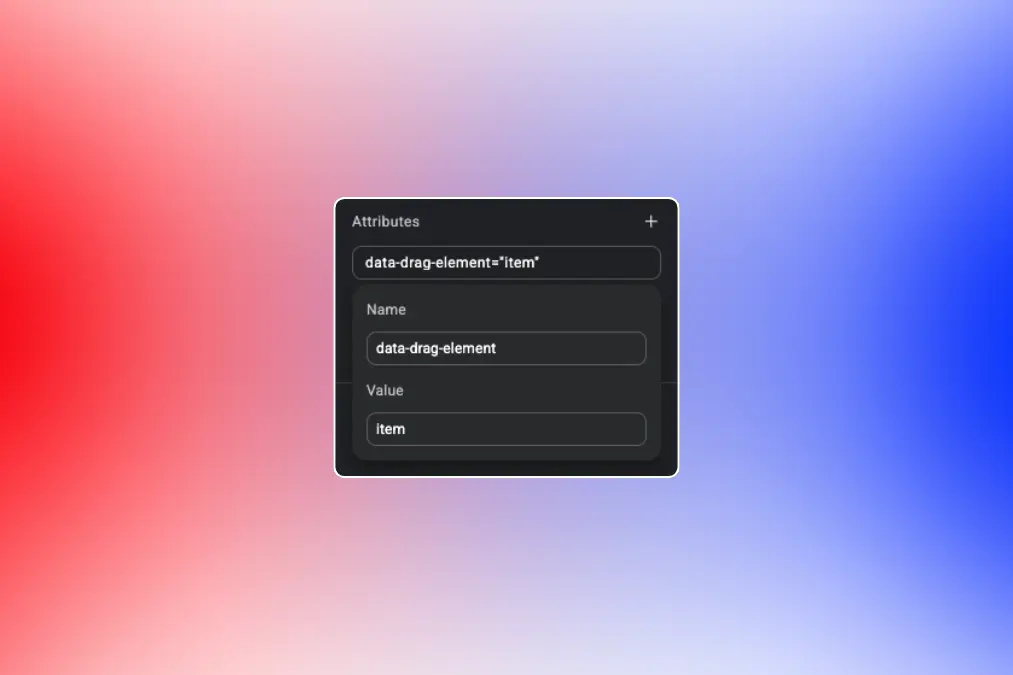
- To add one, select the element, scroll down to the Attributes section at the bottom of the General tab, click the + icon, then enter the attribute name and add a value if needed.
- Sometimes, Elementor may not render the attribute on the front end if the value field is left empty. If the resource documentation does not specify any value, enter
“true”as the value instead. - Some attributes can accept multiple values. In those cases, separate the values with spaces, or follow the format specified in the resource documentation. For example:
data-type="primary large".